What Image SEO Is, and Which Half of It Gets You Found
Much of the usual checklist is page-speed work your site needs anyway. See the six items that put your pictures in front of searchers, and if it pays.

/ On this page11 sections
Image SEO is search engine optimization, or SEO, pointed at pictures: the work of getting the images on your pages found, read and shown. Half of what gets filed under that name belongs to page speed, which your site needs anyway.
The half that is genuinely about images is shorter than the usual list makes it look. Here is the sort, and a way to tell in about two minutes whether either half is worth your afternoon.
What Image SEO Is
One half of image SEO is discovery and meaning. Can a crawler reach the file, and does anything on the page say what the file shows? That is what decides whether a picture turns up at all.
The other half is weight. How big the file is, how many pixels go to a phone that cannot use them, what loads before anyone has scrolled.
Both halves are real work. They answer different questions, and a single numbered list runs them together.
Which Half Deserves the Afternoon
The first one, because it is the half that is specific to pictures.
Weight is a page problem. If a page is heavy, the images are usually why, and the repair is the one a heavy page always needs.
It is not an image search technique. Treating it as one is how an afternoon goes into compression settings with nothing new in the index at the end of it.
So weight gets what it is owed here and no more: the formats a search engine reads, the dimensions that stop a layout jumping, and the syntax for sending a smaller file to a smaller screen.
Use this chart — embed code and citation
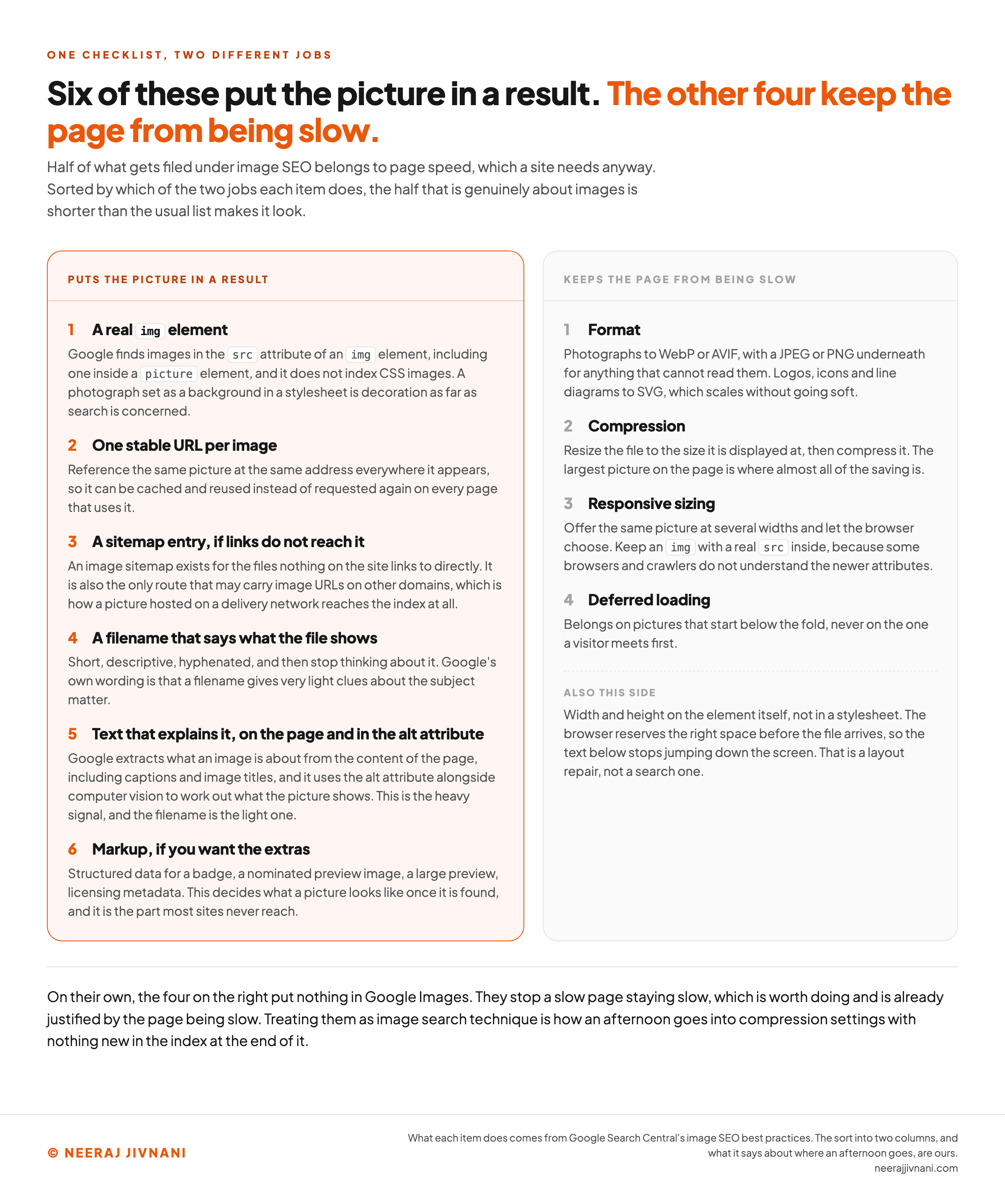
<a href="https://neerajjivnani.com/blog/image-seo/"><img src="https://neerajjivnani.com/infographics/image-seo/six-of-these-put-it-in-a-result.png" alt="A two column reference chart that sorts a standard image checklist by which of two jobs each item does. The orange left column, headed puts the picture in a result, carries six numbered rows: a real img element, since Google finds images in the src attribute of an img element and does not index CSS images; one stable URL per image so it can be cached and reused instead of requested again on every page; a sitemap entry if links do not reach it, which is also the only route that may carry image URLs on other domains; a filename that says what the file shows, which Google's own wording calls a very light clue; text that explains it on the page and in the alt attribute, which is the heavy signal; and markup if you want the extras, meaning a badge, a nominated preview image, a large preview and licensing metadata. The grey right column, headed keeps the page from being slow, carries four: format, compression, responsive sizing and deferred loading, with a note beneath that width and height on the element belong to this side too because they stop the text below jumping as the page loads. A line across the foot records that on their own the four on the right put nothing in Google Images." width="1200"></a>
<p>Chart: <a href="https://neerajjivnani.com/blog/image-seo/">Neeraj Jivnani</a></p>Neeraj Jivnani, "What Image SEO Is, and Which Half of It Gets You Found", neerajjivnani.com, https://neerajjivnani.com/blog/image-seo/Free to republish with a link back to this page.
Where an Image Can Show Up
Four places, and they behave differently enough that it is worth knowing which one you are aiming at.
- Google Images. The dedicated tab. Results are thumbnails in a grid, so far more of them fit on a screen than in a list of ten links, and a result well down the page is still visible.
- Beside a web result. A thumbnail next to an ordinary listing, chosen automatically from the page. Usually worth more than the Images tab, because the click lands on your page directly.
- Discover. The feed on a phone, where a large picture is most of the reason a card gets tapped.
- Lens and visual search. Somebody points a camera or uploads a picture instead of typing, and your page is what the match resolves to.
The route through the Images tab is longer than people expect. A searcher taps a thumbnail, gets a preview panel with a bigger version and a Visit button, and only then arrives.
Two taps. The first one often answers the question on its own, which is why a picture that explains everything can win the impression and lose the visit.
That is not an argument against the work.
Whether Any of This Is Worth Your Afternoon
You do not have to guess. The answer for your own site is already in Search Console.
Open the Performance report. At the top of it is a search type filter, and Google Search Console's own documentation describes it plainly: use it to see data for web, image, video or news results.
Switch it to Image. What you get is clicks, impressions, average position and the queries behind them, for image results only, on your site.
Read the clicks column first.
Near zero clicks on real impressions means people are seeing your pictures and not coming through. That is the two-tap route doing what it does, and no amount of filenames changes it. Spend the afternoon on the pages instead.
Zero impressions usually means a discovery problem rather than a demand problem. The next three sections are the ones that fix it.
Clicks worth having means the surface already works for you. The rest of the work below is then an afternoon well spent, and the licensing half of it may pay for the whole day.
What you see follows from the two-tap route and from what the picture is. Where the image is the thing being searched for, a photograph, a recipe, a product, the tap through is the point of the search. Where it illustrates an argument, the preview panel has already done the job.
Check first. Two minutes, and it decides how much of the next hour is worth spending.
Where the afternoon goes
The sort below is fixed: six things decide whether an image is found and understood, and the rest is page-speed work. What it is worth is a property of your site, and there is a report that already knows.
Do this one before any of the others
Open the Performance report, find the search type filter at the top of it, and switch it to Image. What you get is clicks, impressions, average position and the queries behind them, for image results only, on your site. Everything below is worth a different amount depending on what you see, and it costs two minutes to find out.
Puts the picture in a result
Before any of the mechanics, one decision does more than the rest of them together: whether the picture is worth showing at all. If you removed it, would the page be harder to understand? If not, the page is better without it.
1A real img element
Google finds images in the src attribute of an img element, including one inside a picture element, and it does not index CSS images. A photograph set as a background in a stylesheet can be beautiful, and it cannot rank.
2One stable URL per image
Reference the same picture at the same address everywhere it appears, so it can be cached and reused instead of requested again on every page. Moving to a delivery network, or switching from one to another, rewrites every image URL on the site at once.
3A sitemap entry, if links do not reach it
An image sitemap is an ordinary XML sitemap carrying an extra element per picture, and it exists for the files nothing on the site links to directly. It is also the only route that may carry image URLs on other domains, which is how a picture hosted on a delivery network reaches the index at all.
Not on your list. A sitemap entry joins it only if a crawler cannot reach the files by following links. That is a real condition, not a default.
4A filename that says what the file shows
Short, descriptive, hyphenated, and then stop thinking about it. Google's own wording is that a filename gives very light clues about the subject matter, so renaming a media library full of old files is rarely the best hour available to you.
5Text beside it that explains it
Google extracts what an image is about from the content of the page, including captions and image titles, so the sentence beside the photograph is doing more work than anything you type into a media library field. Put the picture where its explanation already is.
6Markup, if you want the extras
This is the part most sites never reach. It decides what a picture looks like once it is found rather than whether it is found at all.
A badge in Google Images
Structured data can make images eligible for rich results, and in each of those types the image attribute is a required field to be eligible. A recipe page with no image in its markup is not eligible for the badge there.
Telling Google which picture you mean
Three ways to influence an automated choice: the schema.org primaryImageOfPage property, an image attached to the page's main entity, or the og:image meta tag. That is also the tag social platforms read, so one decision covers both.
A large preview instead of a default one
The max-image-preview robots directive, set to large, permits a preview up to the width of the viewport. Two lines of markup, and it changes how every share and every feed card looks.
The Licensable badge
For pictures other people might want to use. It shows a link to the license and to a page explaining how to obtain one, and there are two routes to it that cost different amounts of work.
Not your row. This one is for pictures you own that somebody might pay to use.
Keeps the page from being slow
This half does not move, whatever the report says. It is worth doing and it is already justified by the page being slow. On their own, these put nothing in Google Images.
Format
Photographs to WebP or AVIF, with a JPEG or PNG underneath for anything that cannot read them. Logos, icons and line diagrams to SVG, which scales without going soft.
Compression
Resize the file to the size it is displayed at, then compress it. The largest picture on the page is where almost all of the saving is.
Responsive sizing
Offer the same picture at several widths and let the browser choose. Keep an img with a real src inside, because some browsers and crawlers do not understand the newer attributes.
Deferred loading
Belongs on pictures that start below the fold, and never on the one a visitor meets first.
Width and height belong on the element itself rather than in a stylesheet, and they sit on this side too: the browser reserves the right space before the file arrives, so the text below stops jumping down the screen.
The part this will not answer for you
Whether the picture was worth showing in the first place. An original photograph, a screenshot of the thing you are describing or a diagram you drew can be the only copy of that image on the web. A stock photograph of a person smiling at a laptop is on ten thousand other pages, and a search engine has no reason to prefer yours.
Choosing the Image in the First Place
Before any of the mechanics, one decision does more than the rest of them together: whether the picture is worth showing at all.
An original photograph, a screenshot of the thing you are describing, a diagram you drew: those can be the only copy of that image on the web.
A stock photograph of a person smiling at a laptop is on ten thousand other pages, and a search engine has no reason to prefer yours.
That is the whole argument, and it is not a moral one. It is an argument about supply.
Sharpness matters for a plainer reason than quality signals. The thumbnail is what somebody decides by, and a soft or badly cropped picture loses to a clean one at that size, however good the page around it is.
And some images should not be there. A decorative graphic between two paragraphs costs bytes, costs a decision about alt text, and earns nothing in search.
The test that settles it: if you removed this picture, would the page be harder to understand? If not, the page is better without it.
Getting the File Found at All
A crawler has to reach the file before anything else matters. Nothing you do to a picture is found by a search engine until that is true.
Three things decide it, and the first is the one people skip because it looks too obvious to check.
Use a Real Image Element
Google finds images in the src attribute of an img element, including one sitting inside a picture element. Its documentation is blunt about the alternative: Google does not index CSS images.
So a photograph set as a background in a stylesheet is decoration as far as search is concerned. It can be beautiful, and it cannot rank.
``html
<img src="/photos/copper-roasting-pan.jpg" alt="A copper roasting pan on a gas hob">
``
That is the whole requirement. An element, a real file path, and a description.
Give Each Image One Stable URL
Reference the same picture at the same address everywhere it appears. Google asks for this explicitly, and gives the reason: it can then cache and reuse the image instead of requesting it again on every page that uses it.
The practical consequence catches people out. Moving to a delivery network, or switching from one to another, rewrites every image URL on the site at once, and an index that has already seen the old addresses now meets a set of strangers.
That is not a reason to avoid a delivery network. It is a reason to pick one and stay.
List Them in a Sitemap When Links Do Not Reach Them
An image sitemap is an ordinary XML sitemap carrying an extra element per picture. It exists for the files nothing on the site links to directly.
``xml
<url>
<loc>https://example.com/kitchen/roasting-pans/</loc>
<image:image>
<image:loc>https://cdn.example.com/photos/copper-roasting-pan.jpg</image:loc>
</image:image>
</url>
``
It also does something a regular sitemap cannot, and this is the part worth knowing if your pictures live anywhere but your own server.
Google's documentation states that image sitemaps may include URLs from other domains in the image:loc element. That is how a picture hosted on a delivery network reaches the index at all.
Google adds a condition. If you use one, verify ownership of the network's domain in Search Console, so crawl errors on those files reach you.
If every picture on your site sits inside a page a crawler already reaches by link, you can leave this alone. It starts earning its place when the files are generated, scripted, filtered or paginated into corners nothing points at.
Getting the File Understood
Reaching the file tells a search engine that the picture exists. Getting it understood is a second job, and four things do it.
They are not worth equal attention, and the order below is the order of their weight.
The Text Around It Carries the Most
Google extracts what an image is about from the content of the page, including captions and image titles, and asks that pictures sit near relevant text on pages relevant to their subject.
So the sentence beside the photograph is doing more work than anything you type into a media library field. Put the picture where its explanation already is.
A caption earns its place when a reader scanning the page would want it. A scanner who reads nothing else still reads it, which makes it a poor place for a keyword nobody needs.
Alt Text, for What It Does Here
Alt text exists for people who cannot see the picture. That is its job, and the accessibility rules around it are a subject of their own.
For search specifically, it is one of the signals Google uses, alongside computer vision and the contents of the page, to work out what an image shows. Describe what the picture shows, in a sentence, as if the reader had to work from that alone.
The one failure that costs you: stuffing the attribute with keywords. Google names that as keyword stuffing and says it may cause a site to be seen as spam.
The Filename Is a Light Clue
copper-roasting-pan.jpg beats IMG_4821.JPG, and it beats it by less than this subject implies.
Google's own wording is that a filename can give it "very light clues" about the subject matter. Short, descriptive, hyphenated, and then stop thinking about it.
Renaming a media library full of old files is rarely the best hour available to you.
If you publish in more than one language, translate the filenames too.
The Title Attribute Is Worth Least
Some browsers show it as a tooltip on hover. Keyboard users and most screen reader users never meet it, and no mouse means no tooltip.
Write the sentence into the page instead, where everybody gets it.
The Page the Image Sits On
A picture is indexed with its page, not on its own, so the page's own signals travel with it.
Google's guidance names two in particular: check your page title and description, because it uses both when generating the title and snippet that appear next to a result.
That means the ordinary work you would do anyway is also image work. A page titled for what it covers gives its pictures a context to be ranked in.
There is a quieter consequence. A picture on a thin page competes against the same picture on a page that explains it, and the second one wins.
The File Itself
The file is the weight half. A heavy page is a page problem, and the repair is the same repair whether or not you were thinking about search when you made it.
Formats a Search Engine Will Read
Google Search supports images referenced in the src of an img element in BMP, GIF, JPEG, PNG, WebP, SVG and AVIF.
One rule covers most choices.
- Photographs go to WebP or AVIF, with a JPEG or PNG underneath for anything that cannot read them.
- Logos, icons and line diagrams go to SVG, which scales without going soft.
Google also asks that the file extension match the file type, which sounds trivial until you meet a folder of .jpg files that are PNGs inside.
Set the Dimensions on the Element
Width and height belong on the img element itself, not in a stylesheet.
``html
<img src="/photos/copper-roasting-pan.jpg" width="1200" height="800"
alt="A copper roasting pan on a gas hob">
``
The browser reserves the right space before the file arrives, so the text below it stops jumping down the screen as the page loads. A global rule in CSS cannot do this, and a fixed one distorts every picture on the site.
Send a Smaller File to a Smaller Screen
srcset lets you offer the same picture at several widths and let the browser choose; sizes tells it how wide the picture is going to be displayed. Mozilla's responsive images guide is the clearest reference for the syntax.
``html
<img src="/kit/skillet-800.jpg"
srcset="/kit/skillet-400.jpg 400w, /kit/skillet-800.jpg 800w, /kit/skillet-1600.jpg 1600w"
sizes="(max-width: 600px) 90vw, 800px"
alt="A cast iron skillet, seasoned and unwashed, on a wooden board">
``
A picture element does the same job across formats, offering AVIF first and falling back. Whichever you use, keep an img with a real src inside it: Google recommends the fallback explicitly, because some browsers and crawlers do not understand the newer attributes.
Weight, in Two Sentences
Resize the file to the size it is displayed at, then compress it, and the largest picture on the page is where almost all of the saving is.
Deferred loading belongs on pictures that start below the fold, never on the one a visitor meets first.
The Markup That Changes How an Image Appears
Everything so far decides whether a picture is found. Markup decides what it looks like once it has been, and it is the part most sites never reach.
Structured Data and the Badge
Structured data can make your images eligible for rich results, including a prominent badge in Google Images.
Google is precise about the condition: in each of those structured data types, the image attribute is a required field to be eligible for a badge and rich result in Google Images.
So a recipe page with no image in its markup is not eligible for the badge there. The picture is not decoration on the markup, it is part of it.
Telling Google Which Picture You Mean
Google's selection of a preview image is automated, and it reads several sources to make the choice. You can influence it three ways: the schema.org primaryImageOfPage property, an image attached to the page's main entity, or the og:image meta tag.
Google publishes four best practices for the picture you nominate, and they are worth taking at face value:
- Relevant and representative of the page, not a house style choice.
- Not generic, not your logo, and not an image that is mostly text.
- Not an extreme aspect ratio, so nothing unusually narrow or unusually wide.
- High resolution, where you have one.
That is also the tag social platforms read, so one decision covers both.
The Size of the Preview Is a Setting
Left alone, a page gets a preview at whatever size Google picks. The max-image-preview robots directive changes that, and Google documents three values: none, standard, and large, where large permits a preview up to the width of the viewport across web search, Google Images, Discover and Assistant.
``html
<meta name="robots" content="max-image-preview:large">
``
Discover is where this matters most, and Google's specification for it is a list rather than a single number.
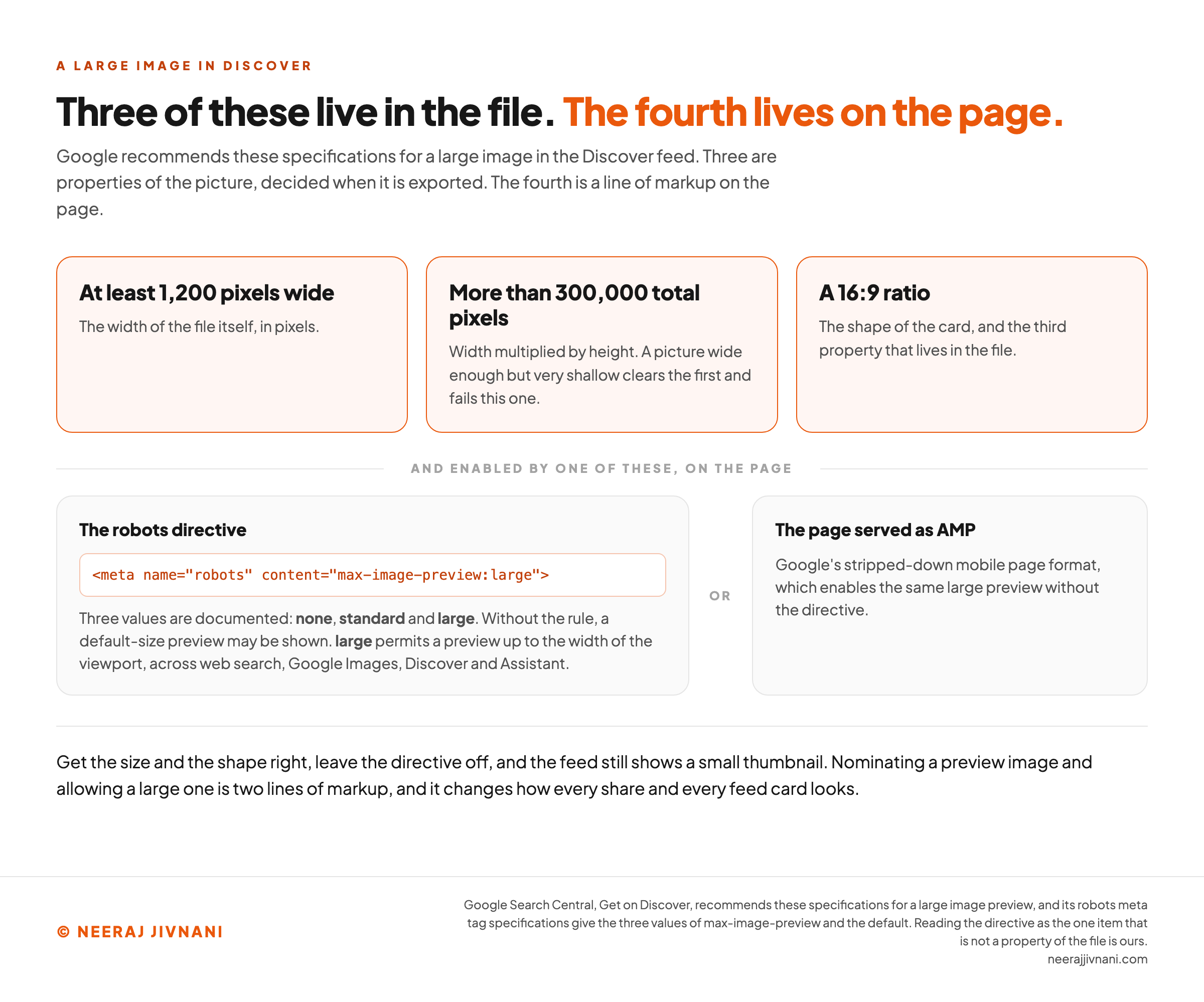
It recommends a picture at least 1,200 pixels wide, more than 300,000 total pixels, and a 16:9 ratio, enabled by the max-image-preview:large setting or by serving the page as AMP, Google's stripped-down mobile page format.
The setting is the one to check. Size and shape live in the file; the directive lives on the page.
Get the size and the shape right, leave the directive off, and the feed still shows a small thumbnail.
Licensing Metadata, and Which Route to Take
If you own pictures other people might want to use, licensing metadata makes them eligible for the Licensable badge in Google Images, which shows a link to the license and to a page explaining how to obtain one.
There are two routes to it, and they cost different amounts of work. That difference is the thing worth taking away.
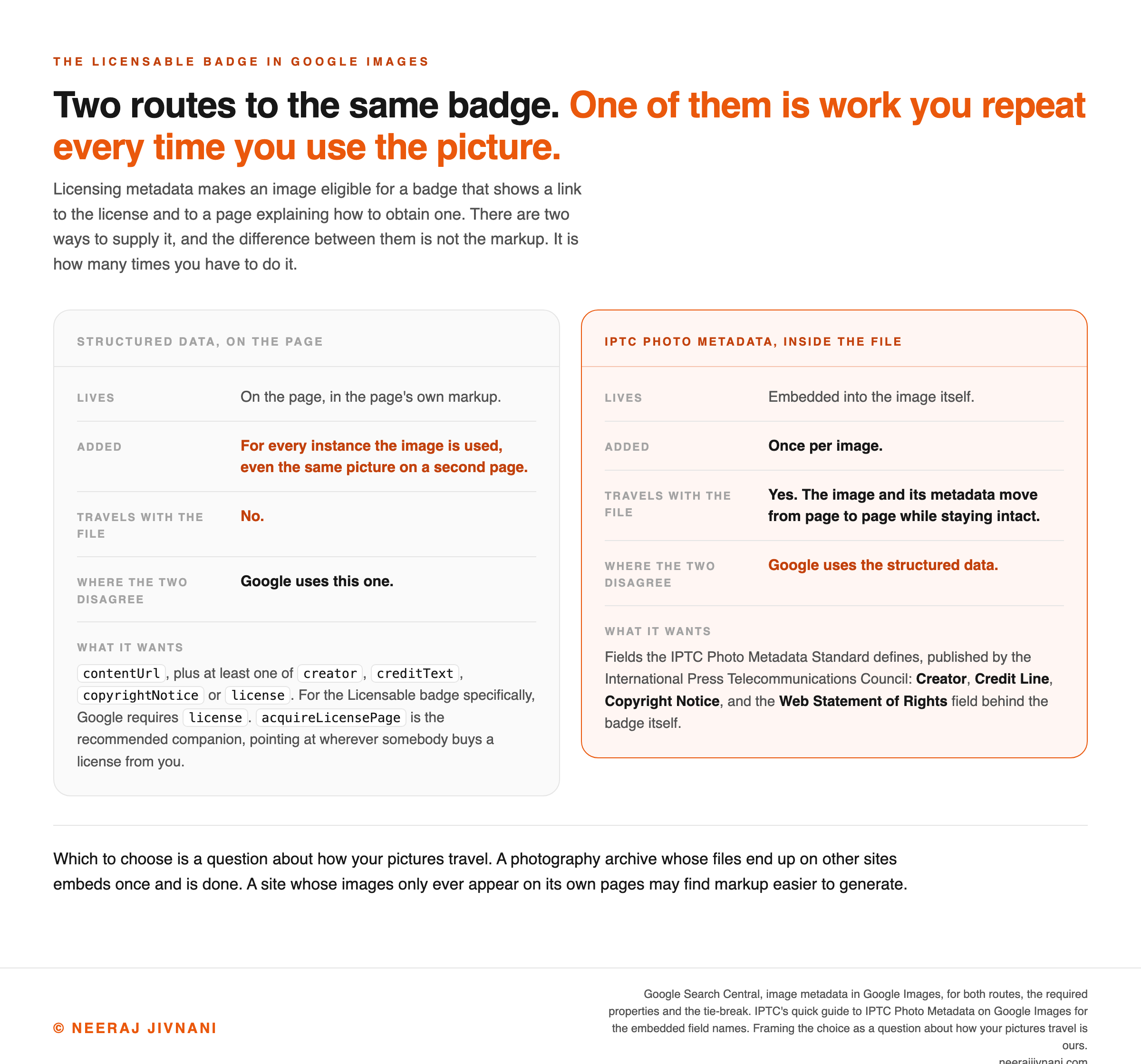
| Structured data | IPTC photo metadata | |
|---|---|---|
| Lives | on the page | inside the image file |
| Added | for every instance the image is used, even the same image on a second page | once per image |
| Travels with the file | no | yes |
| Google's tie-break | wins | loses |
| The fields | contentUrl, plus one of creator, creditText, copyrightNotice or license, with acquireLicensePage recommended alongside | Creator, Credit Line, Copyright Notice, and the Web Statement of Rights field behind the badge |
Google states both halves. Structured data has to be added for every instance an image is used, even the same picture on a second page.
IPTC photo metadata is embedded into the image itself, so the image and its metadata can move from page to page while staying intact. Where the two conflict, Google uses the structured data.
The markup route wants contentUrl and at least one of the four properties in the table, and for the badge itself Google requires license. The embedded route uses fields the IPTC Photo Metadata Standard defines, published by the International Press Telecommunications Council.
Which to choose is a question about how your pictures travel.
A photography archive whose files end up on other sites embeds once and is done. A site whose images only ever appear on its own pages may find markup easier to generate.
Use this chart — embed code and citation
<a href="https://neerajjivnani.com/blog/image-seo/"><img src="https://neerajjivnani.com/infographics/image-seo/the-item-that-is-not-in-the-file.png" alt="Four specification cards for a large image preview in Google Discover, split by where each one lives. Three orange cards across the top are properties of the picture itself: at least 1,200 pixels wide, more than 300,000 total pixels, where a picture wide enough but very shallow clears the width and fails the count, and a 16:9 ratio, which is the shape of the card. A divider beneath them reads and enabled by one of these, on the page, and two panels give the two ways to enable it: the robots meta tag set to max-image-preview colon large, shown as a line of markup, with the note that three values are documented, none, standard and large, that without the rule a default-size preview may be shown, and that large permits a preview up to the width of the viewport across web search, Google Images, Discover and Assistant; or the page served as AMP, Google's stripped-down mobile page format. The title states that three of these live in the file and the fourth lives on the page, and a closing line records that getting the size and the shape right while leaving the directive off still shows a small thumbnail." width="1200"></a>
<p>Chart: <a href="https://neerajjivnani.com/blog/image-seo/">Neeraj Jivnani</a></p>Neeraj Jivnani, "What Image SEO Is, and Which Half of It Gets You Found", neerajjivnani.com, https://neerajjivnani.com/blog/image-seo/Free to republish with a link back to this page.
Use this chart — embed code and citation
<a href="https://neerajjivnani.com/blog/image-seo/"><img src="https://neerajjivnani.com/infographics/image-seo/two-routes-to-the-same-badge.png" alt="A two column comparison of the two routes to the Licensable badge in Google Images, matched row for row. The left column, headed structured data on the page, records that it lives in the page's own markup, that it has to be added for every instance the image is used even the same picture on a second page, that it does not travel with the file, and that Google uses it where the two disagree; it wants contentUrl plus at least one of creator, creditText, copyrightNotice or license, with license required for the badge itself and acquireLicensePage recommended alongside it. The orange right column, headed IPTC photo metadata inside the file, records that it is embedded into the image itself, added once per image, travels with the file from page to page while staying intact, and loses to the structured data where the two disagree; its fields are Creator, Credit Line, Copyright Notice and the Web Statement of Rights field behind the badge. A line across the foot reads that which to choose is a question about how your pictures travel." width="1200"></a>
<p>Chart: <a href="https://neerajjivnani.com/blog/image-seo/">Neeraj Jivnani</a></p>Neeraj Jivnani, "What Image SEO Is, and Which Half of It Gets You Found", neerajjivnani.com, https://neerajjivnani.com/blog/image-seo/Free to republish with a link back to this page.
When You Do Not Want the Image Out There
Sometimes the answer is no, and there is a documented way to say it that does not involve hiding the picture from your readers.
Google publishes an opt-out from inline linking: check the HTTP referrer header when an image is requested, and if the request comes from a Google domain, reply with a 200 status code, or a 204 and no content.
The result is that Google still crawls the page and sees the picture, and shows a thumbnail generated at crawl time instead of serving the full-size file on the results page.
Google states that this is not considered image cloaking and does not result in a manual action.
Two smaller controls are worth knowing.
- Robots rules and a `noindex` directive keep images out entirely.
- SafeSearch is a filter you can label for. If a site carries adult or explicit material, saying so is what stops Google applying the filter to the rest of it by mistake.
Start With the Check
Do the first of these before any of the others, on one page, then repeat the set on the templates that generate the rest of the site.
- Check what image search is worth to you. Search Console, Performance, Search type set to Image. Everything below is worth a different amount depending on what you see.
- Confirm the pictures are in `img` elements with real file paths, and that nothing important is a CSS background.
- Give each picture one address and keep it there, rather than moving the whole library the next time the hosting changes.
- Put each picture next to the text that explains it, write a caption where a scanner would want one, and describe it in the alt attribute.
- Rename the files you are about to publish, and leave the archive alone unless something brings you back to it.
- Nominate a preview image, allow a large one, and add licensing metadata if the pictures are yours and worth something.
A sitemap entry joins that list only if a crawler cannot reach the files by following links. That is a real condition, not a default.
Width, height and a narrower file for small screens belong on the other side of the sort. Do those because the page is slow, not because you are here.
None of it is difficult. What makes it feel so is a list that treats compressing a photograph and claiming a badge as the same kind of task, when one keeps a page from being slow and the other decides what a stranger sees.
Sort the work by which of those it does, and most of the afternoon takes care of itself.